
A tour of the composer
The composer is one screen where you write a post once and adapt it per channel — a Base tab, per-channel tabs with native previews, a sync bar, and a rail.
The composer is a single screen where you write a post once and let it become the right thing on every channel. A Base tab holds your story; each channel you target gets its own tab with a platform-native preview, a sync bar, and a fit-check, while a right-hand rail handles scheduling, approval, and post options.
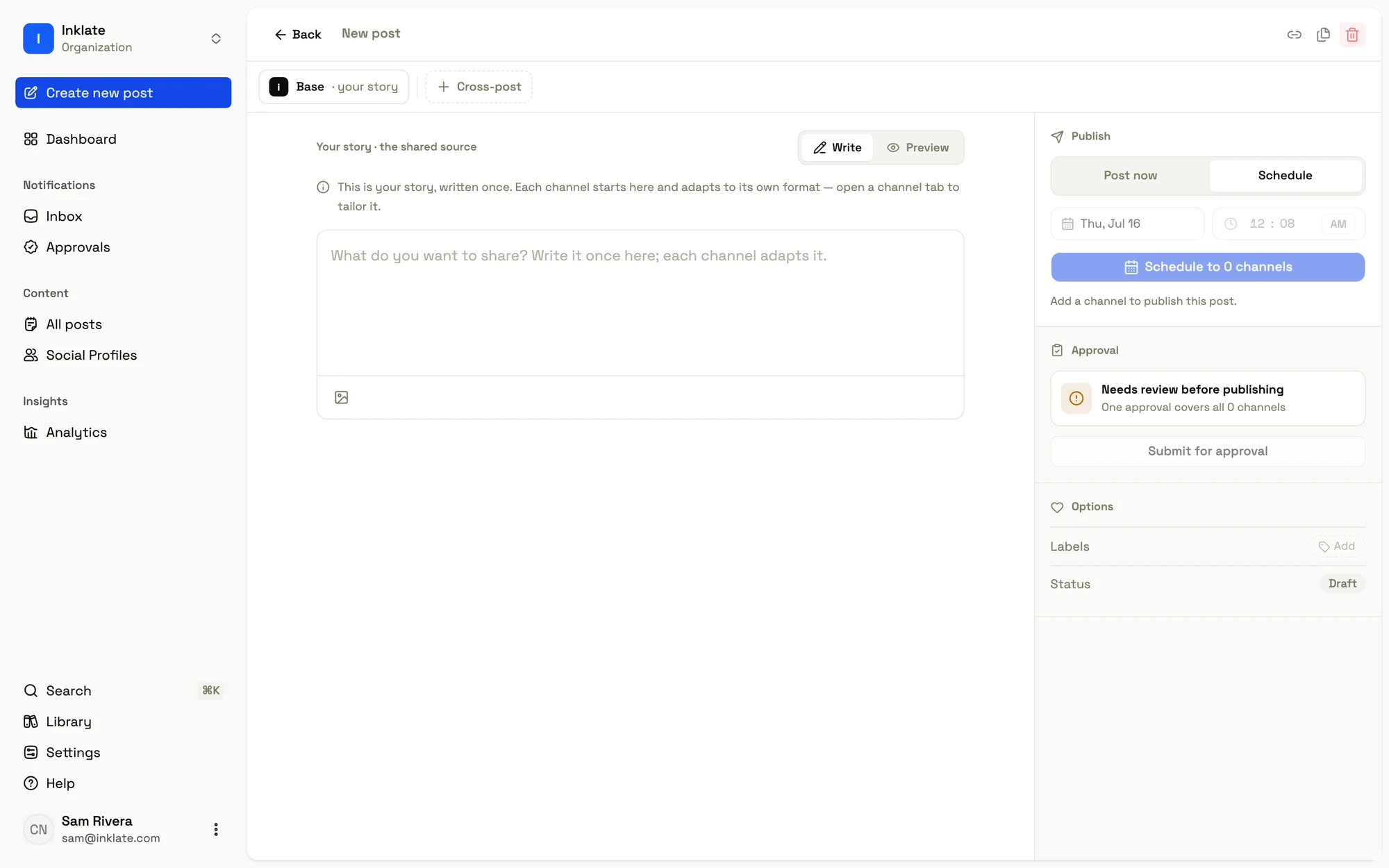
Every post lives at its own URL, so the composer is where you both create and edit — there is no separate dialog. Changes autosave as you work; the top bar shows the save state.
The Base tab and channel tabs
The leftmost tab is Base — your story, the platform-agnostic version of the post. Write it once here with text and media.
Each channel you add appears as its own tab to the right, carrying the channel’s avatar, its display name, its chosen format (“X · Thread”, “Instagram · Reel”), and a small state dot. Switching tabs switches you between the story and each channel’s adapted copy. Because content is stored per channel, two channels on the same network — two LinkedIn pages, say — are separate tabs you can write differently.
Add channels with the Cross-post picker in the channel bar: search your connected channels, check the ones you want, and each is added with its default format. A provider you haven’t connected yet shows under “Connect to unlock” and links you to Social Profiles.
Write and Preview
Each channel tab (and the Base tab) toggles between Write and Preview:
- Write is the editor — the field where you type, format, and attach media.
- Preview is a read-only, platform-native render of that same content, so you see how the post will actually look on the channel before it ships.
The sync bar
Above each channel tab sits a sync bar that states, in words, whether the channel still matches your story or has drifted from it:
- Synced — the channel still tracks the story (“Synced from your story”).
- Edited or Authored — you tailored this channel’s copy, so it no longer follows the story.
- Stale — the story changed since this channel last synced (“Your story changed since this was synced”).
The bar offers the one action that fits — re-sync, or reset to the story — and confirms first when re-syncing would overwrite edits you made by hand. A channel that won’t publish as-is shows its specific repair in the fit-check row below, not as a false alarm in the bar. See Per-channel variants for the full model.
The right-hand rail
The rail on the right is the “what happens next” surface, in three sections:
- Publish — choose Post now or Schedule. Scheduling takes a date and time in your local timezone; all selected channels publish together. Posting now goes behind a confirm, because publishing can’t be undone.
- Approval — appears only when your organization has approvals turned on. One approval covers every channel on the post, and any edit after approval sends it back for review. See Approvals.
- Options — assign labels and read the post’s current status.
The publish and schedule buttons stay disabled until the post is publishable — an empty story, a channel that needs a fix, or media that is still processing or failed all hold the action, each with its own honest message.
Channel health and reconnecting
Every channel shows a health state — healthy channels publish silently, expired ones need reconnecting, and degraded ones warn you about recent failures.
Writing posts
Write in a rich-text editor that supports bold, italic, links, headings, and lists, plus markdown shortcuts — and see each render natively per platform.